
4 min read
755 words
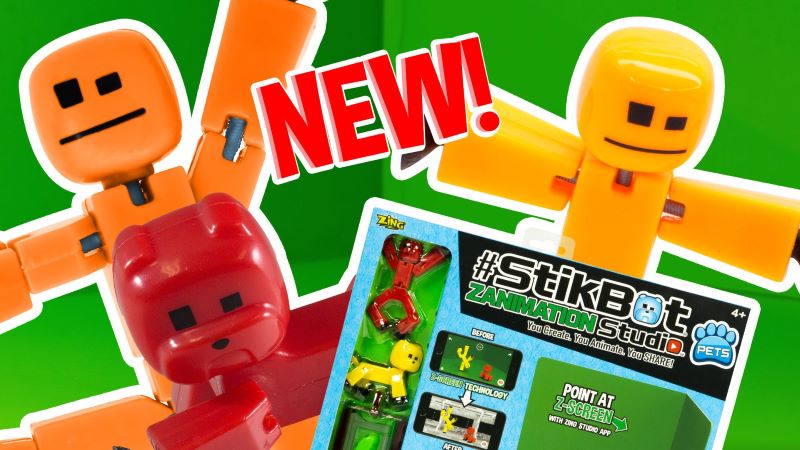
Is your child endlessly creative, always telling stories, or fascinated by how their favorite cartoons are made? If so, you’ve probably heard of Stikbot. As a tech enthusiast and a big kid at heart, I got my hands on the Stikbot Zanimation Studio from Zing Toys to see if it lives up to the hype. Let’s dive into why this might be the perfect toy to unlock your child’s potential as a young filmmaker.
What’s in the Box? Your Animation Toolkit
The Stikbot Zanimation Studio is more than just a couple of figures; it’s a complete film studio in a box. Here’s what you get:
- Three Stikbot Figures: The stars of your show! Their limbs are connected by stretchy rubber bands, making them incredibly posable.
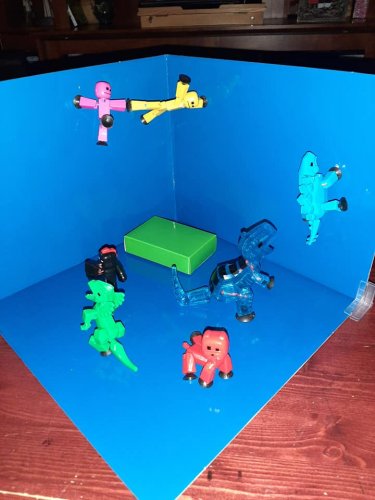
- Suction Cup Hands & Feet: This genius feature lets them stick to most smooth surfaces (walls, windows, the provided screen), allowing for wild and creative shot angles.
- 2-in-1 Green & Blue Z-Screen: This double-sided cardboard backdrop is key for green-screen (chroma key) effects, letting you transport your Stikbots to any digital world.
- Tripod & Stage Clips: The adjustable tripod holds any smartphone steady—essential for smooth stop-motion. The clips hold the screen perfectly in place.
- Two Prop Boxes: Little accessories to add detail and story to your animated scenes.
Setting up the physical stage is a breeze. I had the green screen assembled and clipped into place in under 30 seconds. It’s that simple.
The Magic Happens in the App
The free Stikbot Studio app (available for iOS and Android) is the brains of the operation. It seamlessly guides users through the entire movie-making process. Upon opening the app, you’re greeted with four clear options:
- Tutorials: Pay close attention here! This section is gold, with 18 quick video guides ranging from “Beginner” to “Advanced.” I highly recommend starting here—it saves a lot of trial and error.
- Create Movie: Your main workspace for crafting new animations.
- Gallery: Where your finished masterpieces live.
- Capture Video: For recording regular video, not stop-motion.
Creating Your First Blockbuster: A Quick Guide
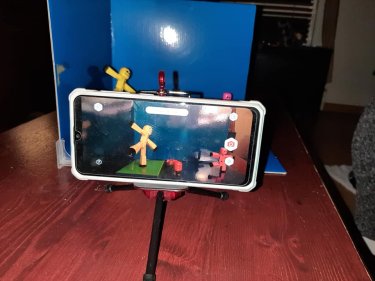
Here’s a step-by-step from my experience:
- Choose Your Background FIRST: Tap “Create Movie,” then immediately hit the “Gear Icon” for settings. This is your one and only chance to choose a background from 23 awesome digital scenes (like a moon base or city street). You also set the green/blue screen sensitivity here. Pro Tip: I learned this the hard way! If you forget this step, you can’t add a background later.
- Start Shooting: Pose your Stikbots on the green screen and tap the red camera button to capture a frame. Move them slightly, capture again. The app shows you the previous frame as a ghost image, making it easy to plan the next move.
- Add Sound & Effects: Once you’ve captured all your frames (the default is 12, but you can do way more!), you can edit your movie. Add sound effects, music, special effects, and even edit individual frames. The “?” help icon on every screen is a lifesaver if you get stuck.
- Render and Share: Hit the arrow icon to render your animation. You can adjust the playback speed here. Once it’s perfect, save it directly to your phone’s camera roll to share with family and friends on social media!
My Honest Thoughts: The Verdict on Stikbot
The Good: Stikbot isn’t just a toy; it’s a genuinely educational tool. It teaches kids the fundamentals of animation, storytelling, and patience in a incredibly fun, hands-on way. The app is powerful yet intuitive, and the green-screen feature produces impressively professional results. The sheer joy of creating something from nothing is priceless.
A Note on Age & Patience: While the box says ages 4+, I believe the sweet spot is for kids ages 7-12. Stop-motion requires a steady hand and a lot of patience to move the figures incrementally. A younger child might get frustrated, but an older child or a patient younger child with parental help will be utterly captivated.
Final Recommendation
If you have a creative, tech-savvy kid who’s ready to graduate from just consuming content to creating it, the Stikbot Zanimation Studio is the perfect gift. It provides hours of engaging, unplugged-style fun that results in a cool digital creation. It’s a brilliant way to foster creativity, problem-solving skills, and maybe even spark a lifelong passion for filmmaking.
Ready to see what your child can create? >> Check out the Stikbot Zanimation Studio at the Official Zing Toys Website
 Christy Jernigan
  April Franke
  Rose DesRochers
My granddaughter is a huge fan of these small toys!