How to secure erase your windows laptop data
8 min read
1422 words
The excitement of upgrading to a new Windows 11 laptop or simply moving on from your old windows laptop is immense. However, before you sell, donate, or recycle your old Windows machine, there’s one crucial step you absolutely cannot skip: securely erasing all your personal data. Many people mistakenly believe that simply deleting files or formatting a drive is enough. Sadly, it’s not. Your sensitive information – from cherished photos and personal documents to banking details and work files – can often be recovered with readily available software, even after a standard deletion. This leaves you vulnerable to identity theft and privacy breaches.
But don’t worry! You don’t need to be a tech expert to safeguard your privacy. Windows provides a remarkably simple, built-in tool that can thoroughly wipe your laptop, making your data unrecoverable for general purposes. This guide will walk you through the simplest method to ensure your personal information stays personal, giving you complete peace of mind as you transition to your new tech.
Why Secure Data Erasure is Non-Negotiable
Imagine your old laptop, brimming with years of your digital life, falling into the wrong hands. Without a proper wipe, someone could potentially access:
- Personal Photos & Videos: Intimate moments, family gatherings, vacations.
- Financial Documents: Bank statements, tax returns, credit card details.
- Login Credentials: Saved passwords, email accounts, social media profiles.
- Work-Related Files: Confidential documents, client information.
- Browser History & Downloads: A complete record of your online activity.
Standard deletion only marks space as available; the data remains until overwritten. Even a quick format doesn’t fully erase the data, making it prone to recovery. To truly protect yourself when selling an old laptop or preparing for a Windows 11 upgrade, you need to ensure your data is not recoverable by conventional means.
Before You Begin: Essential Preparation Steps
Before you initiate the data erasure process, take these critical steps to ensure a smooth transition and prevent any loss of data you do want to keep.
- Backup Absolutely Everything: This is the most important step. Copy all personal files, photos, videos, documents, and any other data you wish to retain to an external hard drive, USB flash drive, or cloud storage service (like OneDrive, Google Drive, or Dropbox). Double-check your backups to ensure they are complete and accessible.
- Deauthorize Software and Accounts: Some software licenses (e.g., Adobe Creative Suite, Microsoft Office, games on Steam) are tied to individual devices. Deauthorize these accounts on your current laptop to free up the license for your new device. Log out of all accounts (Microsoft, email, social media, shopping sites, etc.).
- Find Product Keys (If Applicable): If you have any older software that requires a product key for reinstallation on your new PC, make sure you have it noted down.
- Disconnect Peripherals: Unplug all external devices like printers, monitors, external hard drives, or USB sticks.
- Charge Your Laptop and Plug It In: The wiping process can take several hours, especially with the secure erase option. Ensure your laptop is plugged into a power source to prevent it from shutting down midway, which could corrupt the process.
The Simplest Method: Using Windows’ Built-In “Reset this PC” Feature
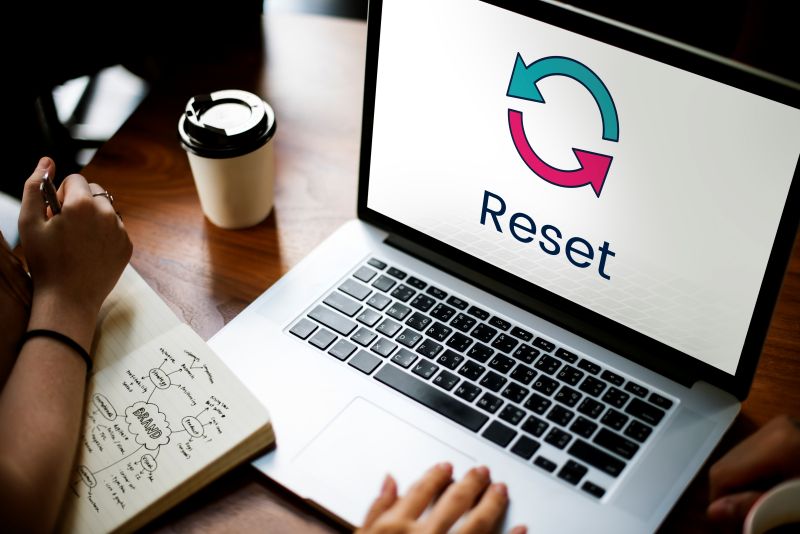
Windows offers a robust “Reset this PC” feature that not only reinstalls the operating system but, more importantly, provides an option to securely erase your data. This is your go-to method for ensuring your data is not recoverable.
Here’s how to do it:
- Open Settings: Click on the Start Menu, then select the Settings icon (the gear).
- Navigate to Recovery: In the Settings window:
- Windows 11: Go to System > Recovery.
- Windows 10: Go to Update & Security > Recovery.
- Initiate “Reset this PC”: Under the “Recovery options” or “Reset this PC” section, click on the “Get started” button.
- Choose “Remove everything”: You’ll be presented with two options:
- “Keep my files”: This removes apps and settings but keeps your personal files. DO NOT CHOOSE THIS OPTION if you’re selling or giving away the laptop.
- “Remove everything”: This option completely removes all your personal files, apps, and settings. This is the option you want to select.
- Select Reinstallation Method:
- “Cloud download”: Downloads a fresh copy of Windows from Microsoft’s servers. This can be faster if you have a high-speed internet connection and ensures you get the latest version.
- “Local reinstall”: Uses files stored on your device to reinstall Windows. This is generally slower but doesn’t require an internet connection during the installation phase. Either option is fine for data erasure purposes.
- The MOST Important Step: Change Settings to “Clean the Drive Fully” Before proceeding with the reset, you’ll see a screen titled “Additional settings” or “Ready to reset this PC.” Look for an option to “Change settings” or “Show settings.”
- Click on “Change settings.”
- You will see an option, typically labeled “Clean data?” or “Delete files and clean the drive.”
- Toggle this option to “Yes” or ensure it’s selected. It might also be described as “Remove files and clean the drive” (the slower, more secure option) versus “Just remove my files” (quicker, less secure).
- Confirm your choice.
- Why this is crucial: This option performs a “deep clean” or a multi-pass overwrite of your hard drive. Instead of just deleting file pointers, it fills the entire drive with meaningless data multiple times. This makes it extremely difficult, if not practically impossible for common data recovery tools to retrieve your old personal files.
- Confirm and Reset: Review the summary of what will happen (e.g., “Remove everything,” “Clean the drive fully,” “Reinstall Windows”). Once you’re sure, click “Next” and then “Reset.”
Understanding “Clean the Drive Fully”: The Key to Preventing Data Recovery
When you choose “Clean the drive fully” (or “Remove files and clean the drive”), you’re not just deleting files. You’re instructing Windows to perform a secure erase, often employing methods similar to the Department of Defense (DoD) standards for data sanitization.
This process involves:
- Overwriting Data: Your hard drive’s storage sectors, where your personal data once resided, are overwritten with new, random data patterns, often multiple times.
- Obfuscation: The original data bits are completely obscured, making them unreadable and unrecoverable by standard software tools.
While this process takes significantly longer (it could be several hours, depending on your drive size and type – SSDs are generally faster than HDDs), it’s the gold standard for personal data security when you’re preparing to sell or dispose of your laptop. For the vast majority of users and scenarios, this built-in Windows feature provides an excellent level of security, rendering your personal data beyond the reach of casual recovery attempts.
After the Wipe: What to Expect
Once you’ve clicked “Reset,” your laptop will begin the secure erasure and Windows reinstallation process.
- Patience is Key: This can be a lengthy operation. Do not interrupt the process by powering down the laptop unless instructed to do so.
- Progress Indicators: You’ll see various progress screens, showing the percentage of data cleaned and Windows being reinstalled.
- Fresh Start: After completion, your laptop will boot up as if it were brand new, presenting you with the initial Windows setup screen (language, region, keyboard layout, etc.). This is your confirmation that the process is complete and your data has been securely erased.
At this point, you can confidently turn off the laptop and prepare it for its new owner or for recycling, knowing that your personal digital footprint has been erased.
Is There an Even More Secure Way? (For Extreme Cases Only)
For individuals dealing with highly sensitive, classified data (e.g., government, corporate secrets), specialized methods like physical destruction of the drive (shredding, degaussing) or certified third-party data erasure software that meets even stricter government standards might be considered.
However, for the average user selling or upgrading their personal Windows laptop, the “Reset this PC” feature with the “Clean the drive fully” option is more than sufficient. It offers robust protection against data recovery and ensures your privacy and security without needing complex tools or expertise.
Conclusion: Upgrade with Confidence!
Upgrading to a new Windows 11 laptop or simply moving on from your old device should be an exciting prospect, not a cause for privacy concerns. By utilizing the simple yet powerful “Reset this PC” feature in Windows and selecting the crucial “Clean the drive fully” option, you can ensure that all your personal data is securely erased and rendered unrecoverable.
This straightforward process safeguards your privacy, protects you from potential identity theft, and gives you the ultimate peace of mind. You’re now fully prepared to embrace your new Windows 11 experience or responsibly pass on your old laptop, knowing your personal information remains yours alone.