Computer Upgrade: Is Your Computer Too Old?
6 min read
1199 words
A computer upgrade can sometimes give an older computer several more years of useful life, but how do you know when upgrading is worthwhile and when it is simply time to replace the machine?
I see this regularly in my computer repair shop. Someone brings in a computer they have had for several years and assumes it is time to replace it. Sometimes that is the right answer. But not always.
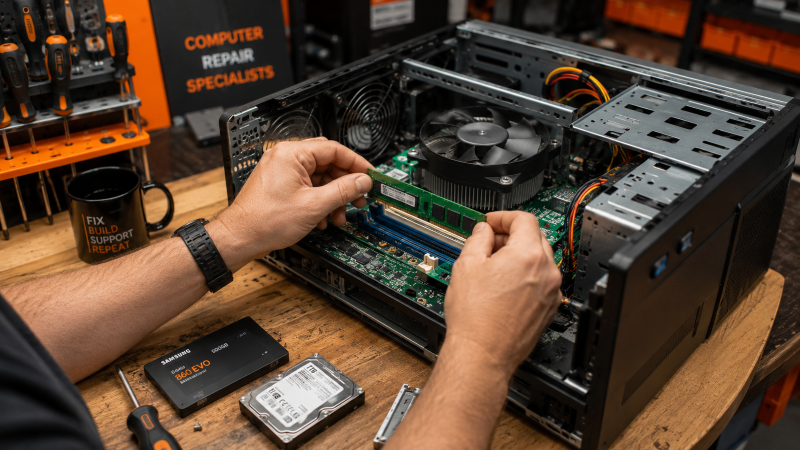
An older computer may still have plenty of useful life left. Adding more RAM, replacing an old hard drive with an SSD or making another targeted computer upgrade can make a noticeable difference without the cost of buying a new machine.
The trick is knowing what your computer needs, what it can support and how much the computer upgrade will cost. Let’s look at the signs that can help you decide.
How Old Is Too Old?
The age of a computer is only part of the story. What is inside the computer matters much more.
When I look at a computer for a possible computer upgrade, I check the processor, motherboard, RAM, storage and operating system. I also look at the overall condition of the machine.
A five or six year old computer may be a good candidate for an upgrade. On the other hand, an older computer with a very slow processor, limited RAM and several failing components may not be worth putting money into.
Signs Your Computer May Be Worth Upgrading
There are several things that can make an older computer a good candidate for a computer upgrade.
If the computer starts reliably, does not regularly crash and the main hardware is in good condition, that is a good beginning.
RAM is another important consideration. If the computer has 4GB or 8GB of RAM and the motherboard allows additional memory, adding RAM may improve performance, particularly when you have several programs or browser tabs open.
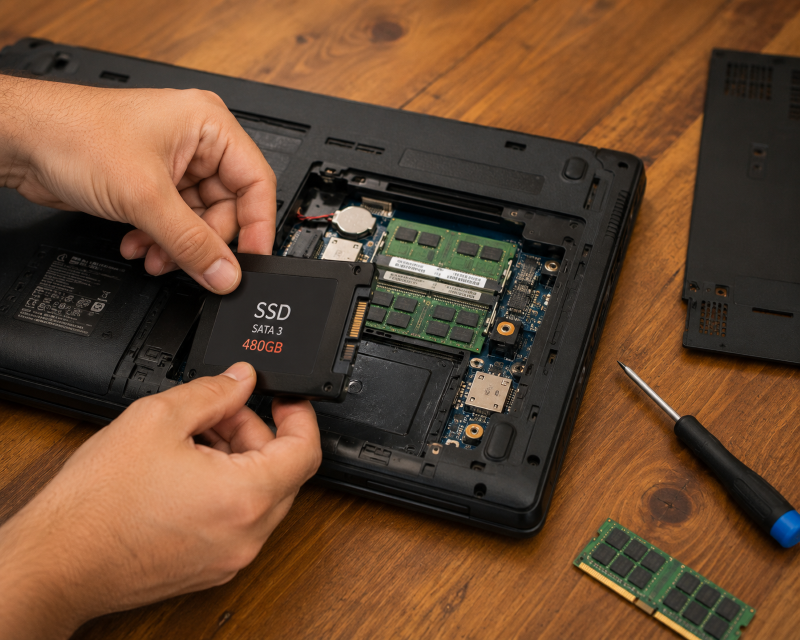
Storage can make an even bigger difference. If the computer still has a traditional hard disk drive, replacing it with a solid state drive, or SSD, can make the computer feel considerably faster.
An SSD can improve startup times, program loading and general responsiveness. It will not make an old processor faster, but it can make everyday use much less frustrating.
Signs Your Computer May Be Too Old
Sometimes a computer upgrade simply is not worth the money.
One warning sign is an old processor that cannot be replaced. This is especially common with laptops where the processor is soldered directly to the motherboard.
Limited RAM can also be a problem if the computer cannot be expanded. If you cannot add more memory, there may be little you can do about poor performance.
The motherboard is another important factor. Older motherboards can limit the types of RAM, processors and storage devices you can use. That does not necessarily mean an SSD will not work, but an older connection may limit the drive’s potential speed.
Frequent crashes, overheating and repeated hardware failures are also reasons to think twice before spending money on a computer upgrade.
Check the Operating System
Operating system support should be part of the decision.
Windows 10 reached its end of support on October 14, 2025. If your computer cannot run a currently supported operating system, that needs to be considered before spending money on an upgrade.
Windows 11 has specific hardware requirements, including TPM 2.0 and a supported processor. Not every older computer can meet those requirements.
I would not recommend continuing to use an unsupported operating system simply because the computer still turns on. Security updates are an important part of keeping your computer and personal information protected.
Add Up the Cost of the Computer Upgrade
Before deciding to upgrade, find out what the computer actually needs.
You might need an SSD and additional RAM. A laptop could also need a battery, cooling system repair or another component.
Add everything together and compare the cost with buying another computer. Spending a reasonable amount on an SSD and RAM can make sense if the rest of the computer is in good shape. Spending several hundred dollars on a computer that has multiple aging components may not.
Get It Checked Before You Replace It
If you are not sure whether your computer is worth a computer upgrade, have it assessed before replacing it.
A reputable computer repair shop should be able to check the hardware, determine what can be upgraded and explain your options. You should be given an honest assessment rather than simply being told that you need a new computer.
Sometimes the answer really is replacement. Other times, a relatively inexpensive computer upgrade can give your computer several more years of useful life.
Computer Upgrade or Replace? A Quick Checklist
Still not sure what to do with your older computer? This quick checklist can help.
A computer upgrade may make sense if:
☐ The computer is otherwise reliable
☐ The processor is still suitable for what you use it for
☐ You can add more RAM
☐ It has an older hard drive that can be replaced with an SSD
☐ It can run a currently supported operating system
☐ The cost of the computer upgrade is reasonable compared with buying another computer
Replacing the computer may make more sense if:
☐ The processor is too old or cannot be upgraded
☐ The RAM cannot be expanded and is insufficient for your needs
☐ Several major components are failing
☐ It cannot run a currently supported operating system
☐ Repairs and upgrades are becoming expensive
☐ The total computer upgrade cost is close to what you would spend on a suitable replacement
☐ The computer no longer does what you need it to do
If you checked mostly the first list, an upgrade may be worth considering. If most of your answers are in the second list, it may be time to start looking for a replacement.
When Should You Replace It?
Replacement usually makes more sense when several major components are failing, the computer cannot run a supported operating system or the cost of repairs and a computer upgrade is getting close to the price of a suitable replacement.
You should also consider what you use the computer for. A machine that was fine for email and web browsing may no longer be suitable if you now need it for photo editing, video work or gaming.
Replacing your old computer? Don’t forget your data. Before selling, donating or recycling your old Windows laptop, make sure your personal files and information have been properly removed. Read our guide on How to Secure Erase Your Windows Laptop Data to learn how to securely erase your data before your old computer leaves your hands.
Don’t Judge a Computer by Its Age
An older computer is not automatically a bad computer.
Before you put it out for recycling, look at its processor, RAM, storage, operating system and overall condition. A new SSD or additional RAM may be all it needs to become useful again.
If you are unsure, get a professional opinion and find out what the computer actually needs before spending money. Sometimes a computer upgrade is the smart choice. Sometimes replacing it is. The important thing is knowing which one makes sense for your particular computer.